

Activation process
In order to give you real-time visibility of the fundraising progress, we require that you create a google sheet that will be updated in real-time as funds are contributed. This is a simple three step process where you will:
- Create a new Google Sheet
- Name the Google Sheet e.g. Amicus_Fundraising_Excel
- Share the Google Sheet URL with us for Activation
The steps below will help you activate your real-time fundraising.
While inside the Google Drive you created (If you have not created, check the steps under 'Chatify your Google Drive') follow the below steps
Step #1a: Create Google Sheet - Tap on the + (plus) button
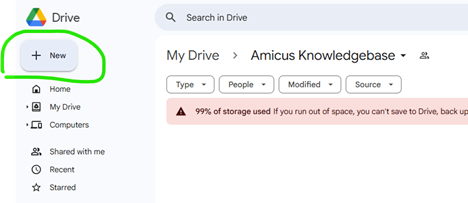
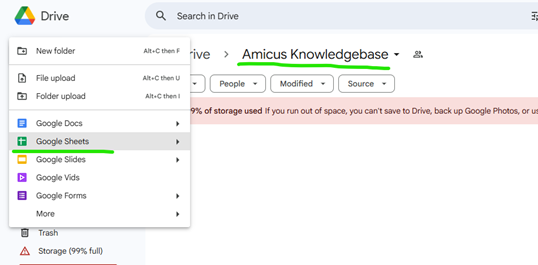
Step #1b: Create Google Sheet - Tap on Google Sheets
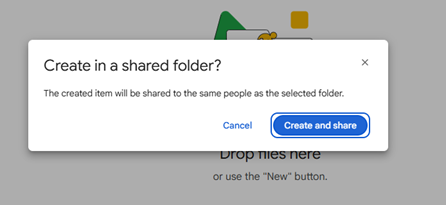
Step #1c: Create Google Sheet - Confirm Share with Hebifa.Rafiki@gmail.com (Incase you did not share, please follow the steps under 'Chatify your Google Drive' and share the google drive folder with Hebifa)
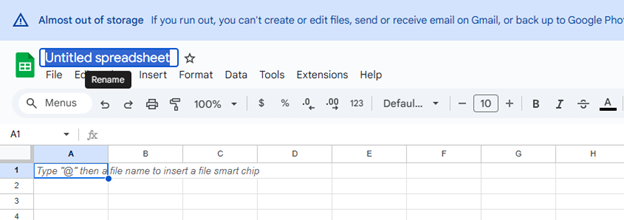
Step #2: Name the File e.g. Amicus_Fundraising_Excel - Double click on the name and change the name.
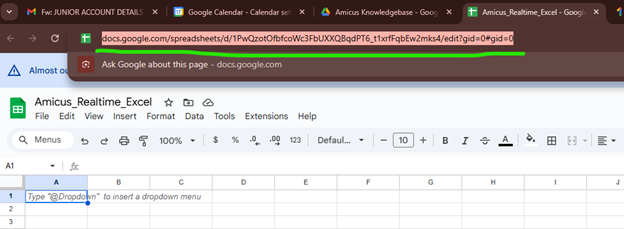
Step #3a: Copy the excel sheet url (underlined in green) and send it to us via a ticket you will create in the next step
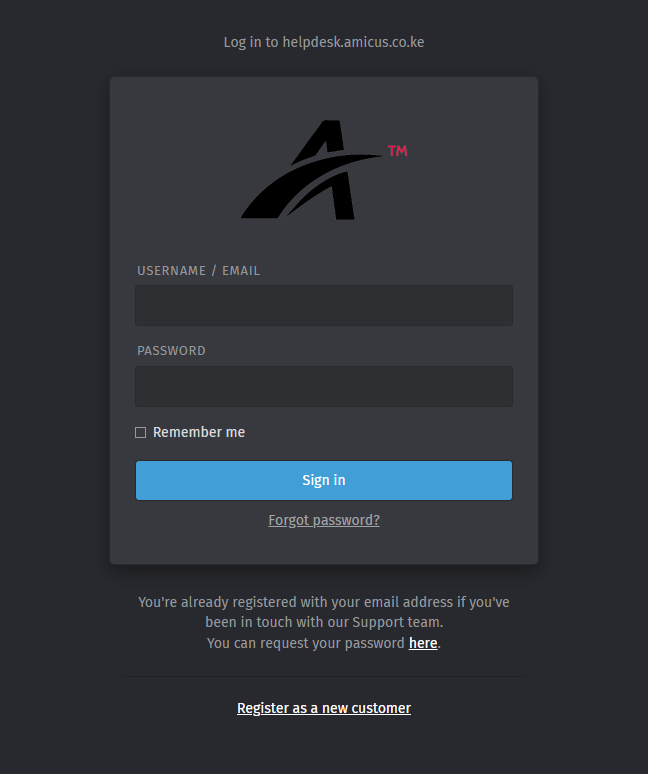
Step #3b: If you already have a support account login by visiting the link https://helpdesk.amicus.co.ke . However, if you do not have a support account, tap the link 'Register as a new customer' and complete the registration process
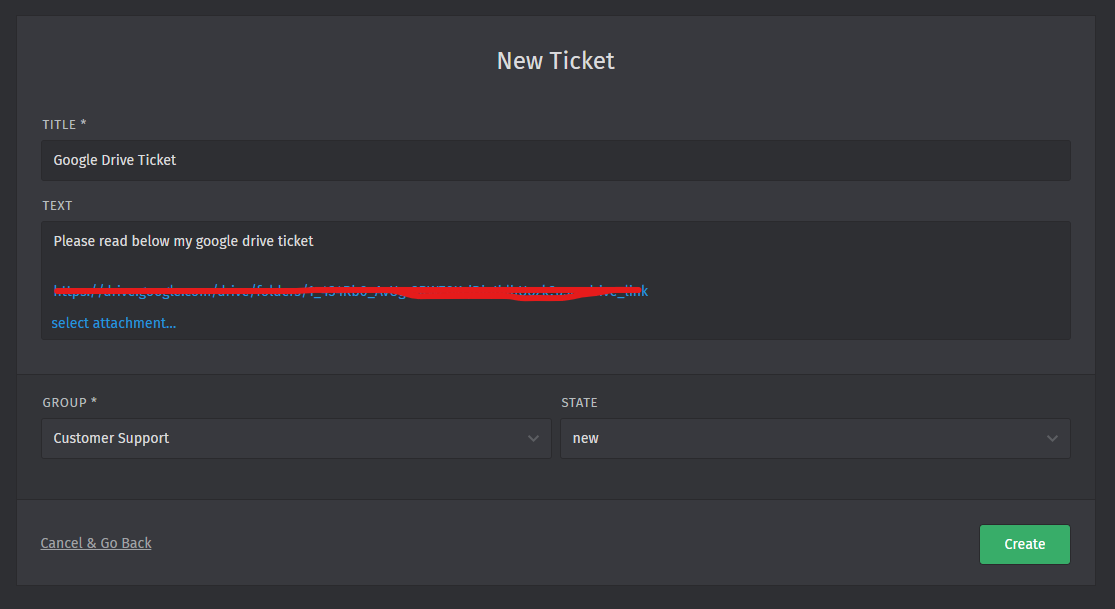
Step #3c: When creating a ticket, paste the URL you had copied from the previous step and then paste it as text in the ticket that you create. REMEMBER TO CHANGE THE TITLE of your ticket
END